How to add and optimize author Bio in WordPress?

If you are a regular blog writer using WordPress, it is important to have a well-written author bio section on your website. Not only does it help establish your authority and credibility as a writer, but it also gives your readers a chance to get to know you better. Simply adding your name on author bio is not enough; it should also be optimized for search engines and user experience. In this blog we provide a step-by-step guide on the process of adding and optimizing your author bio in WordPress, so that your website can drive more traffic from the various regions.

The Importance of Adding an Author Bio in WordPress

Adding a author bio to your WordPress website helps to build a strong online presence as a writer or blogger. A well-written bio can help readers connect with you on a more personal level, which can ultimately increase engagement with your content and grow your audience. Here are some key reasons why a comprehensive author bio is important:

  1. Establishes Your Authority: When readers visit your website, they want to know who you are and why they should trust your content. Your bio should highlight your expertise, experience, and accomplishments in your field, establishing you as an authority on your topic.
  2. Builds Personal Connections: People do business with people they know, like, and trust. Sharing personal information in your bio, such as your hobbies or interests, can help readers feel like they know you on a personal level and are more likely to engage with your content.
  3. Optimizes SEO: Including relevant keywords in your bio can improve your website’s search engine optimization (SEO), helping your website rank higher in search engine results pages (SERPs) and driving more organic traffic to your site.
  4. Boosts Social Media Profiles: A comprehensive author bio can be used not only on your website but also on your social media profiles, such as Twitter, LinkedIn, or Instagram. This consistency across platforms creates a cohesive online brand and improves your overall online presence.

Hope you have understand the importance of adding a author Bio in WordPress, in next session we have provide how to optimize author Bio in detail

Step- by-Step guide on Optimizing Author Bio

Stay tuned to understand how to write a compelling author bio that resonates with your target audience.

Step 1: Accessing Your WordPress Profile and Navigating to the Author Bio Section

Before you can add or optimize your author bio in WordPress, you need to access your WordPress profile and navigate to the author bio section. Here are the steps to follow:

  1. Log in to your WordPress account with your credentials.
  2. Once logged in, click on your username or profile picture located in the top right corner.adding author profile
  3. Select “Edit Profile.” From the drop-down menu,
  4. Scroll down to find the “Biographical Info” section, which is where you will add and optimize your author bio.Biographical Info section

Keep in mind that the location of this section may vary depending on the WordPress theme you are using. If you are having trouble locating the section, refer to the theme’s documentation or contact the theme’s support team for assistance.

Step 2: Crafting Your Author Bio Content

Now that you’ve located the “Biographical Info” section in your WordPress profile, it’s time to craft the content for your author bio. Your author bio should provide readers with a brief summary of who you are, your background, and what you write about. Here are some tips for crafting a compelling author bio:

  1. Start with a hook: Capture your reader’s attention by hooking them in with an interesting or memorable statement. This could be a personal anecdote, a notable accomplishment, or a relevant quote.
  2. Highlight your expertise: Let readers know why you’re qualified to write about your chosen topics. This could include your educational background, work experience, or relevant awards or publications.
  3. Share your interests: Give readers a glimpse into your personal interests and hobbies. This helps to create a connection with your audience and makes you more relatable.
  4. Include a call to action: End your author bio with a call to action, such as a link to your website or social media profiles. This encourages readers to connect with you and follow your work.

Remember to keep your author bio concise and to the point. Aim for around 100-150 words, and use clear and simple language. Once you’ve written your author bio, be sure to proofread it for any errors or typos before saving it to your WordPress profile.

Step 3: Including a Compelling Headshot or Image

Your author bio is not complete without a compelling headshot or image. Adding an image to your author bio makes it more personal and helps readers to connect with you. Here are some tips for choosing the right image for your author bio:

  1. Use a high-quality image: Your author bio image should be clear, high-resolution, and professional. Avoid using blurry or low-quality images.
  2. Choose a relevant image: Select an image that is relevant to your writing or your personal brand. You can use a headshot or an image that represents your niche or topic.
  3. Make it consistent: Use the same image across all your online platforms, including your website, social media profiles, and author profiles on publishing sites.
  4. Optimize the image: Make sure to optimize your image for the web by resizing it to the appropriate dimensions and compressing it to reduce the file size.

Step 4: Adding Links and Other Relevant Information

In this step, you will learn how to add links to your author bio and other relevant information that can help you build your brand and promote your work. Here are the steps to follow:

  1. Include links to your website or blog: If you have a website or blog, make sure to include a link to it in your author bio. This will help readers to find more of your work and learn more about you.
  2. Add links to your social media profiles: Include links to your Facebook, Twitter, LinkedIn, and other social media profiles where you want to build your following. This will help readers to connect with you on other platforms.
  3. Mention any awards, accolades, or publications: If you have won any awards, received any special recognition, or have been published in any notable publications, make sure to mention it in your author bio.
  4. Provide contact information: If you want readers to get in touch with you, include your email address or other contact information in your author bio. This will make it easier for readers to reach out to you directly.

Step 5: Optimizing Your Author Bio for SEO

It is important to optimize your author bio for search engine optimization (SEO). By doing so, you increase your chances of being discovered online and reaching more readers. Here are some steps to take to optimize your author bio for SEO:

  1. Use relevant keywords: Research relevant keywords related to your writing and include them in your author bio. This will help search engines understand what your writing is about and improve your visibility to potential readers.
  2. Keep it concise: Search engines favor concise and straightforward content. Keep your author bio short and to the point, while still providing relevant information. Avoid long, rambling sentences and paragraphs.
  1. Use subheadings: Break up your author bio into sections and use subheadings to make it easier to read. This can also help search engines understand the different topics covered in your bio.
  2. Use anchor text: When adding links in your author bio, use descriptive anchor text instead of generic phrases like “click here“. This can help improve your link’s relevance and value for SEO.
  3. Update regularly: Keep your author bio up to date with your latest publications, awards, and accolades. This helps to engage readers and keep your author bio relevant and authoritative.

Final Thoughts

Adding and optimizing your author bio in WordPress is an essential step towards expanding your online presence and building your reader base. By following the step-by-step guide above, you can create a bio that is concise, informative, and optimized for SEO. Remember to keep your bio up to date with your latest work and achievements, and to regularly review and revise it to ensure it stays relevant and engaging.

A Guide On How to Do Google Analytics Implementation

When it comes to Google Analytics implementation with their WordPress website, many WordPress users need help to gather user information.

Thankfully, there are several ways to integrate Google Analytics with WordPress. These methods are relatively easy to use once users know what they are doing and can be helpful in various circumstances.

What is Google Analytics?

What is Google Analytics

It’s most beneficial to know what Google Analytics is and how it functions before connecting it to your WordPress website. In brief, this platform helps track the activity on your website through Google Analytics and gives you vital information to help you improve it. 

Google Analytics collects a variety of data by inserting a small code into the header of each page on your website. This data is categorised into five groups:

  • Realtime: This shows what is occurring on your website as you view the report.
  • Include details about your site’s audience, including demographic information.
  • Acquisition: Describes how visitors are brought to your website.
  • Behaviour: Displays what website visitors do, such as the most popular pages and button clicks, while on your site.
  • Conversions: An advanced report to track actions like e-commerce sales and email list subscriptions in conjunction with Google Analytics goals.

Why is Google Analytics Important?

You can use Google Analytics to make data-driven decisions by viewing the relevant statistics. You’ll notice:

Who visits your website?

This analytics section provides information on your audience’s location, the browser they used to access your website, and other crucial details like language, screen resolution, JavaScript and Flash support.

This information is beneficial and can be used in a variety of ways. For example, you can use user data to inform your custom website design and ensure that your target audience will be happy with it.

What Are Viewers Doing In your Website?

You can monitor the user’s journey through your website, their time spent there, and the bounce rate (the percentage of users who exit your site on the first visit).

This data can lower your bounce rate and raise your page views.

You can also see which of your articles are the most read, which are performing poorly, and what content your users prefer.

How to Do Google Analytics Implementation in Your Website?

There are mainly two ways of adding Google Analytics to your WordPress website, such are

  1. By using tracking code
  2. By installing the plugin

Before going to either of the methods, first, you need to create your Google Analytics account. So let’s see how to do that.

All you require to sign up for Google Analytics is a Google or Gmail account. To create your Google Analytics account, follow the simple signup instructions below.

Step 1: Go to the Google Analytics website and register there first. Click the “Get started today” button on the website.

The next step is to log in using your Google account. If you already have one, you can sign in using your Google or Gmail account. Of course, you can still set up a Google account if you prefer.

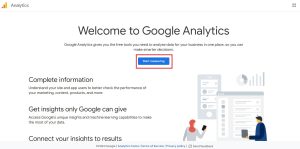
Step 2: A welcome screen like the one below will appear after you sign in using your Gmail account.

You can use your Gmail account to sign up for Google Analytics here. Click the “Start measuring” button now.

Google Analytics start measuring

You will then be asked for an account name. You can use anything similar to your company name since this name will only be used internally.

Google Analytics will also display settings for data sharing across multiple accounts. You have control over sharing your Google Analytics data thanks to these settings. You can proceed to the following step while maintaining the default settings.

Google Analytics account name

Step 3: Create a Google Analytics property on the following screen.

Google released Google Analytics 4, or GA4, a new software version. The most recent version tracks your website and mobile apps under one account. Additionally, you get new metrics, features, and a new report interface.

Enter the name of the property, the reporting time zone, and the currency to get started. Next, press the “Next” button.

Then on the next screen, a popup will show up and ask for your business information, like how many employees are working there.. teressawilde selfie

business information

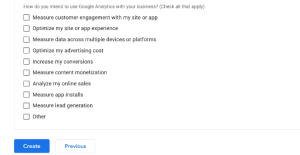
The next step is to scroll down and choose how you want to use Google Analytics for your company, such as to measure engagement, reduce advertising costs, boost conversions, and other things.

You can pick a few options or all of the available ones, depending on what you need. Then, click the “Create” button when you are done.

how you want to use google analytics

The Google Analytics terms of the service agreement will pop up once you click the Create button.

Select “I also accept the Data Processing Terms as required by GDPR” from the drop-down menu before clicking the “I Accept” button.

You’ll then see a popup with options for the Google Analytics communication emails you’d like to receive.

Select the updates you want to receive by checking the appropriate boxes, and then click the “Save” button.

Like this, you can create your own Google Analytics account.

By Using Tracking code

Go ahead and choose “Web” as the platform since we are configuring Google Analytics for a WordPress website.

You will then need to enter data streams like the website URL and name of your stream.

data stream

An enhanced measurement option will be turned on by default in Google Analytics. With Google Analytics, you can now monitor things like page views, scrolls, outbound clicks, file downloads, and more.

You can then select the “Create” button.

Your Stream URL, name, and Measurement ID will now be visible. 

Additionally, it will display various improved measurements that it will record.

Under the “Tagging Instructions” section, Google Analytics will also provide examples of how to add Google Analytics code to your WordPress website.

You can see the tracking code for Google Analytics by selecting the “Global site tag (gtag.js)” option.

Depending on the technique you employ below, you may need to copy this tracking code and paste it into your WordPress website. You can leave this tab open in your browser and return to it later to copy the necessary code.

This is an option for adding your Google Analytics code if you feel comfortable working directly in your theme code. Remember that you are making direct changes to the theme files, so if you update or change your theme, you will lose your Google Analytics code and need to add it again.

Step 1: Select Appearance > Theme File Editor from the WordPress dashboard.

Step 2: Choose the parent theme and header.php.

Step 3: Cut and paste the code just before the /head> element that closes the page.

Step 4: To save your modifications, click Update File.

By Installing the Plugin

installing the plugin

A plugin is the simplest way to add your Google Analytics tag code to WordPress.

The most widely used SEO plugin for adding your Google Analytics code to your website is MonsterInsights Google Analytics for WordPress.

Unless you require sophisticated tracking and reporting features, the free version should function just fine. After that, if you think the free version is insufficient, you can upgrade to the pro version.

Step 1: Installing and enabling the MonsterInsights plugin.

Step 2: Open the Wizard, enter the details of your website, and press the Connect MonsterInsights button. This will get you through a few pages of pre-selected settings for your setup.

Step 3: The following step will ask you to sign in to your Gmail account and grant access to your Google account.

Step 4: After clicking Allow, the Google Analytics account to which it will connect will be displayed.

Step 5: To connect to your Google Analytics account, select Complete Connection. When done, it will offer you the option to upgrade to Pro, but you can choose the link at the bottom to complete the installation without doing so.

Now that everything is set up, Insights should appear in your WordPress dashboard. In the WordPress dashboard, Reports, Settings, and any other tools you’ve chosen will now be visible.

Conclusion

Google Analytics is an essential tool for website managers and owners to analyse their site’s search engine optimization, but it’s not the only one you can use. For example, growing your audience and building your brand requires monitoring user activity, referral sources, and other data on your website. This will provide enough information about implementing Google Analytics on your website.